
The Offline Domain Join Problem
We often come across clients that have a need to join machines to the domain, even when devices are not on the corporate network. This requirement is often spawned from a need for Conditional Access hybrid-join or Direct Access.
Either way, Offline Domain Join (ODJ) can be an incredibly useful tool.
Recently, IT Benchmarq worked with a client that was looking to move from managing more than 300 geographically dispersed Windows endpoints in a traditional workgroup configuration to a more centralized management model.
At first glance, Microsoft Intune might seem like the obvious solution. And for many organizations, it would be.
However, this client specifically wanted to maintain a traditional Active Directory Domain Services (AD DS) architecture. They wanted centralized authentication, Group Policy management, and the ability to manage Windows endpoints using the tools their IT team was already familiar with.
There was just one problem:
How do you domain-join hundreds of computers that aren’t connected to the corporate network?
That’s where Offline Domain Join and some PowerShell automation magic from our IT Benchmarq Engineers came to the rescue.
Table of Contents
The Environment
The client’s environment consisted of:
- 2 Domain Controllers
- 1 DirectAccess server
- 300+ geographically distributed Windows endpoints
- Windows 10 Enterprise workstations
- Traditional Active Directory and Group Policy management
The Domain Controllers would provide centralized identity and management through Active Directory and Group Policy.
The DirectAccess server would provide persistent connectivity between remote workstations and the corporate network.
The desired end-state looked something like this:
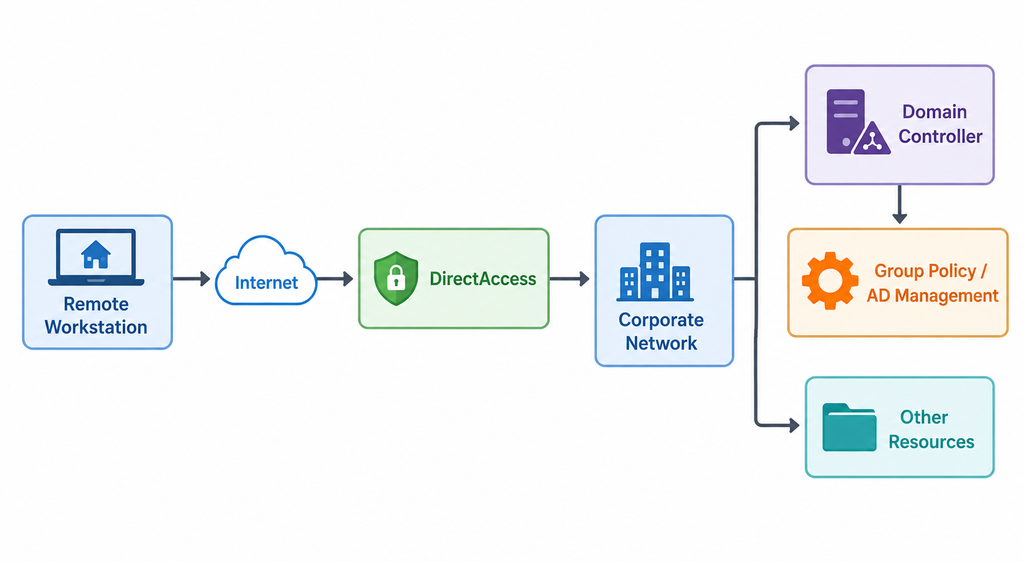
The challenge was getting the workstations into Active Directory before they had connectivity to the Domain Controllers.
Why Offline Domain Join?
Under normal circumstances, joining a Windows computer to a domain is easy.
The workstation communicates with a Domain Controller, authenticates against Active Directory, creates or updates its computer account, and completes the domain join. But that process assumes the workstation can communicate with the domain. Our workstations couldn’t.
They were geographically dispersed and initially operated as workgroup machines. We couldn’t simply tell every user to bring their computer into the office, connect it to the corporate network, perform the domain join, and then configure remote connectivity. We needed a way to prepare the domain membership ahead of time.
That’s exactly what Offline Domain Join provides.
Microsoft’s djoin.exe utility allows an administrator to provision a computer account and generate the information required for a target Windows computer to join the domain without communicating with a Domain Controller during the initial provisioning process. That gave us the basic building block.
The next challenge was scale. Doing this once is easy. Doing it 300 times manually is not.
The Two-Phase Approach
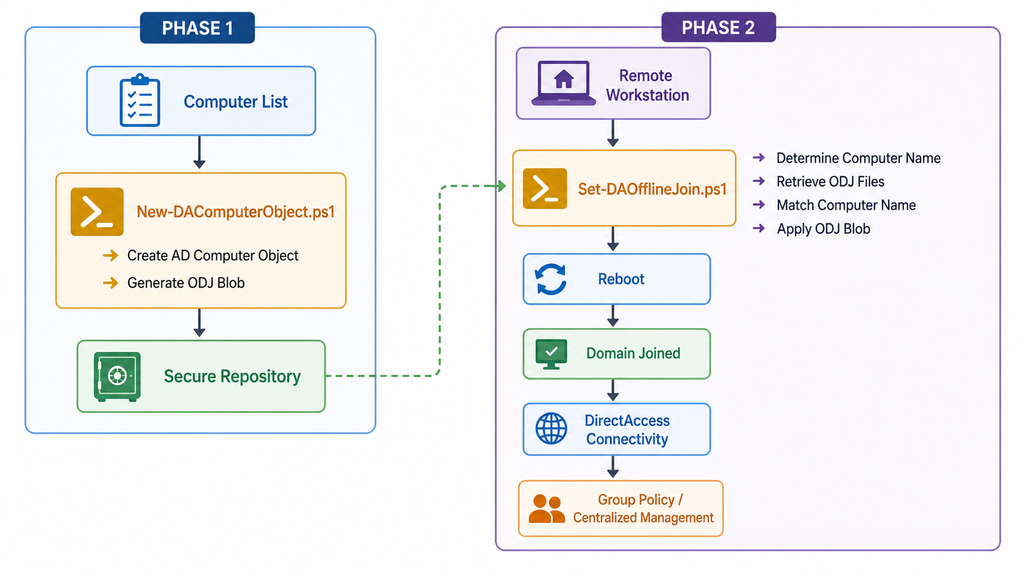
Rather than manually handling each workstation, we developed a two-phase PowerShell process:
- Generate the Offline Domain Join information for every computer.
- Automatically retrieve and apply the correct provisioning information on each endpoint.
https://github.com/itbenchmarq/Msft-Intune-ODJ
This turned the deployment from a manual process into a repeatable bootstrap workflow.
Phase One: Generating the Offline Domain Join Blobs
The first component of the solution was: New-DAComputerObject.ps1
The script takes a standard TXT file containing a list of workstation names. For each computer, it provisions the appropriate Active Directory computer account and generates the Offline Domain Join provisioning information.
The resulting files are written to: C:\Temp
At this point, we had everything required to perform an Offline Domain Join. But we still had an operational problem. Someone would need to get the correct blob onto the correct computer. With 300+ endpoints, that would mean manually moving hundreds of files around and making sure that the correct file went to the correct workstation.
That’s where the second script comes in.
Protecting the ODJ Files
Before moving on, there’s an important security consideration.
The generated Offline Domain Join files should be treated as sensitive infrastructure artifacts. For this implementation, we staged the files in a private GitHub repository so the endpoint bootstrap script could retrieve the appropriate file programmatically. The repository should remain private, access should be tightly controlled, and the provisioning files should be removed or otherwise handled appropriately once they’re no longer required.
The important point is that these files shouldn’t be treated like ordinary source code.
If you’re implementing this approach in your own environment, consider:
- Private repository access
- Appropriate authentication
- Least-privilege access
- Short-lived provisioning material where possible
- Cleanup after successful deployment
- Audit logging
- Protection against unauthorized access to the repository
The goal is to automate the process without creating a new security problem.
Phase Two: Automating the Domain Join
The second component was: Set-DAOfflineJoin.ps1
This script performs the endpoint-side portion of the process. Instead of requiring an administrator to determine which ODJ blob belongs to a particular workstation, the script determines the computer’s name and uses that information to locate the appropriate provisioning file.
The workflow becomes:
- Determine the computer name.
- Retrieve the available ODJ provisioning files.
- Locate the file corresponding to the workstation.
- Download the appropriate blob.
- Apply the Offline Domain Join configuration.
- Prompt the workstation for a reboot.
- Complete the domain join.
- Establish remote connectivity.
- Allow the workstation to receive normal domain configuration.
This eliminated a significant amount of manual intervention. The endpoint essentially becomes responsible for finding the provisioning information that belongs to it.
More Than Just Domain Joining
We also used the endpoint bootstrap script as an opportunity to perform a few additional validation and configuration tasks. One of those was Windows licensing, specifically since Direct Access requires Windows 10/11 Enterprise.
The script checks the Windows edition installed on the workstation and verifies that the expected Windows 10 Enterprise configuration is present. If the appropriate Enterprise activation wasn’t present, the script could apply the organization’s KMS client configuration so that the workstation could activate through the existing KMS infrastructure once connectivity was established.
While this can be commented out to remove it from the tool, you can incorporate other repetitive deployment activities into the same workflow.
What Happens After the Reboot?
Once the Offline Domain Join process is applied and the workstation reboots, the computer can complete the domain join process. At that point, the machine transitions from: Workgroup computer to Domain-joined computer
Once DirectAccess connectivity is established, the workstation can communicate with the organization’s internal infrastructure.
That means the IT team can begin taking advantage of the centralized management capabilities they wanted in the first place:
- Active Directory authentication
- Group Policy
- Centralized configuration
- Remote administration
- Domain-based security policies
- Access to internal resources
The important part is that we didn’t need to physically bring every workstation onto the corporate network to get there.
Why Automate This?
One of the easiest mistakes to make in infrastructure engineering is evaluating automation based on how long something takes once.
“That only takes five minutes.” That’s true. But what happens when you need to do it 300 times?
Five minutes × 300 endpoints = 25 hours of repetitive work.
And that’s assuming everything goes perfectly.
Real-world deployments introduce additional overhead:
- Wrong computer names
- Incorrect files
- Failed reboots
- Users unavailable
- Connectivity issues
- Licensing problems
- Troubleshooting
- Documentation
- Rework
Suddenly, the five-minute task isn’t five minutes anymore. Automation isn’t necessarily about making a single deployment faster.
It’s about making the 301st deployment look exactly like the first one.
The Bigger Lesson: Bootstrap Is Often the Hardest Part
This project also reinforced something we see frequently in infrastructure projects:
The hardest part of endpoint management is often getting the endpoint into the management ecosystem.
Once a workstation has:
- Network connectivity
- Domain membership
- Authentication
- Management tooling
- Group Policy
- Remote access
many other administrative tasks become relatively straightforward.
The difficult part is getting from: “Here’s a Windows computer sitting somewhere on the Internet” to “Here’s a trusted, managed computer inside our corporate environment.”
Offline Domain Join provides an important piece of that transition. PowerShell provides the automation.
And the remote-access technology provides the connectivity needed after the initial bootstrap.
What About Intune and Modern Endpoint Management?
It’s worth addressing the elephant in the room.
Why not just use Intune? For many organizations, Intune, Entra ID, Windows Autopilot, and modern cloud-based endpoint management are absolutely the right direction.
In fact, Microsoft currently recommends Always On VPN instead of DirectAccess for new deployments. But infrastructure decisions aren’t always made in a greenfield environment.
Organizations may have:
- Existing Active Directory infrastructure
- Hundreds or thousands of GPOs
- Legacy applications
- Domain-dependent applications
- Existing VPN infrastructure
- Regulatory requirements
- Internal expertise centered around AD
- A roadmap that doesn’t include immediate cloud migration
In those environments, the answer isn’t always “replace everything with Intune.” Sometimes the right answer is to automate the environment you actually have.
And that’s what we did here.
Could This Work Without DirectAccess?
Absolutely.
The important component of this solution is the Offline Domain Join and endpoint bootstrap process, not DirectAccess itself. The same general concept can be adapted to other remote connectivity architectures.
For example, an organization could use:
- Always On VPN
- Traditional VPN
- Device Tunnel
- Other secure remote-access technologies
Microsoft’s current Always On VPN architecture includes a Device Tunnel that can establish connectivity before user logon, specifically supporting scenarios such as device management and pre-login connectivity.
That makes the underlying bootstrap concept useful beyond the specific DirectAccess implementation described in this project.
Lessons Learned
There are a few broader lessons we took away from this deployment.
Automation Becomes More Valuable With Scale
A task that seems insignificant for one endpoint can become a major operational burden across hundreds of endpoints.
Traditional Infrastructure Doesn’t Have to Mean Manual Processes
The client wanted Active Directory and Group Policy.
That didn’t mean we needed to perform every administrative task manually.
PowerShell allowed us to preserve the architecture while modernizing the deployment process.
Bootstrap Processes Deserve More Attention
Organizations spend a lot of time thinking about how to manage endpoints.
They should spend just as much time thinking about how those endpoints initially become managed.
Reusable Automation Is an Asset
The scripts created for this project weren’t just useful for this one deployment.
The same concepts can be adapted for other endpoint onboarding scenarios, making the work a reusable infrastructure component rather than a one-off script.
Final Thoughts
DirectAccess isn’t necessarily where we’d start for a brand-new endpoint architecture today. Microsoft itself recommends Always On VPN for new deployments, and modern organizations may also benefit from cloud-native management through Intune and Entra ID.
But sometimes the best engineering solution isn’t about introducing the newest technology. It’s about finding a practical way to solve the problem within the client’s existing environment.
In this case, Offline Domain Join provided the missing bridge between a workgroup computer and a fully managed Active Directory endpoint.
By combining Offline Domain Join with PowerShell automation and remote connectivity, we turned what could have been a tedious 300+ workstation deployment into a repeatable process.
And that’s really the point of infrastructure automation. It’s not about making computer number one easy.
It’s about making computer number 301 just as easy as computer number one.
Want to Use This Approach in Your Environment?
We’ve made the PowerShell components available so you can review the approach and adapt it to your own environment.
Grab the scripts from our GitHub repository and let us know what you think.
If you’re dealing with a large number of geographically distributed Windows endpoints and need help designing a repeatable onboarding or migration process, IT Benchmarq can help design and implement the solution.
Tools | Automation for MSPs | Citrix Patching Automation Tool | Crowdstrike Maintenance Token Tool